The Error Highlight and Error Resolution using AI feature is designed to streamline your workflow management by quickly identifying, understanding, and resolving errors. Leveraging advanced AI capabilities, this feature provides visual cues, actionable insights, and clear troubleshooting guidance, all available directly from the Error Tab in the side panel. It ensures that your workflows remain efficient and error-free, enhancing overall productivity.
Why This Feature Matters
- Improves Workflow Reliability: Swiftly highlights and assists in resolving errors to ensure your workflows run smoothly without disruption.
- Saves Time: It offers clear explanations and suggested fixes for any detected errors.
- Increases User Confidence: Simplifies troubleshooting of complex workflows, empowering you to resolve issues independently without relying on external support.
Using Error Resolution AI
Errors are indicated in the Workflow Builder with an Error Icon, which appears next to actions and triggers in the bottom-right corner.
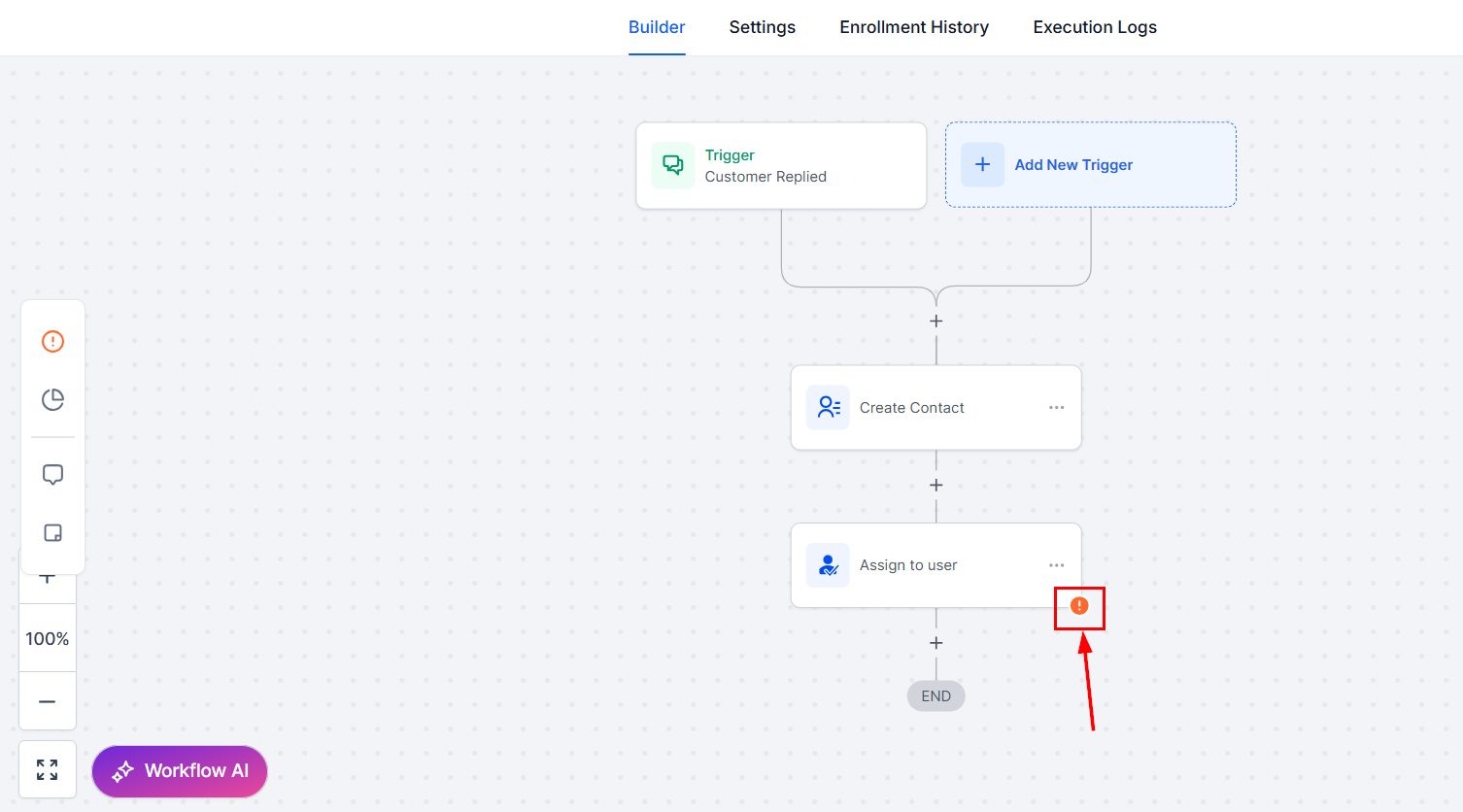
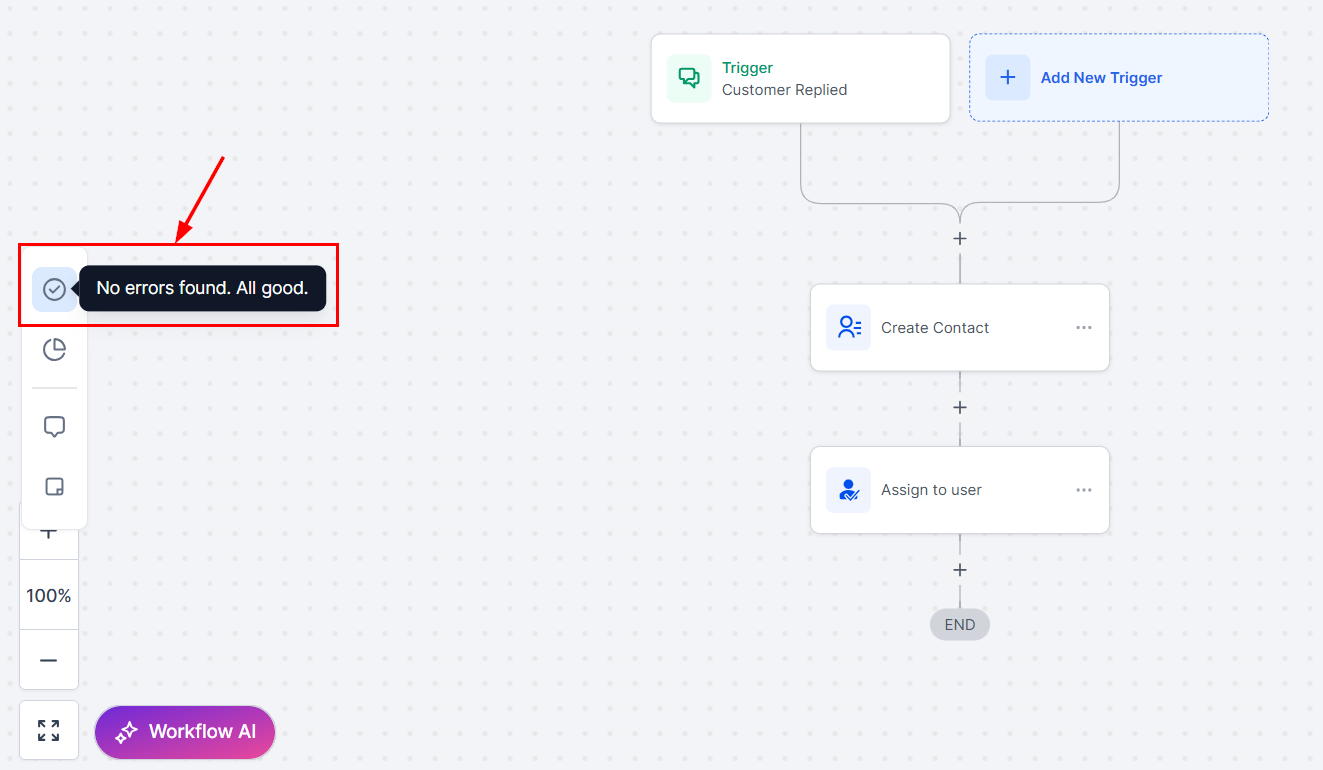
Alternatively, you can click the Error Tab in the side panel to view a detailed list of all errors.
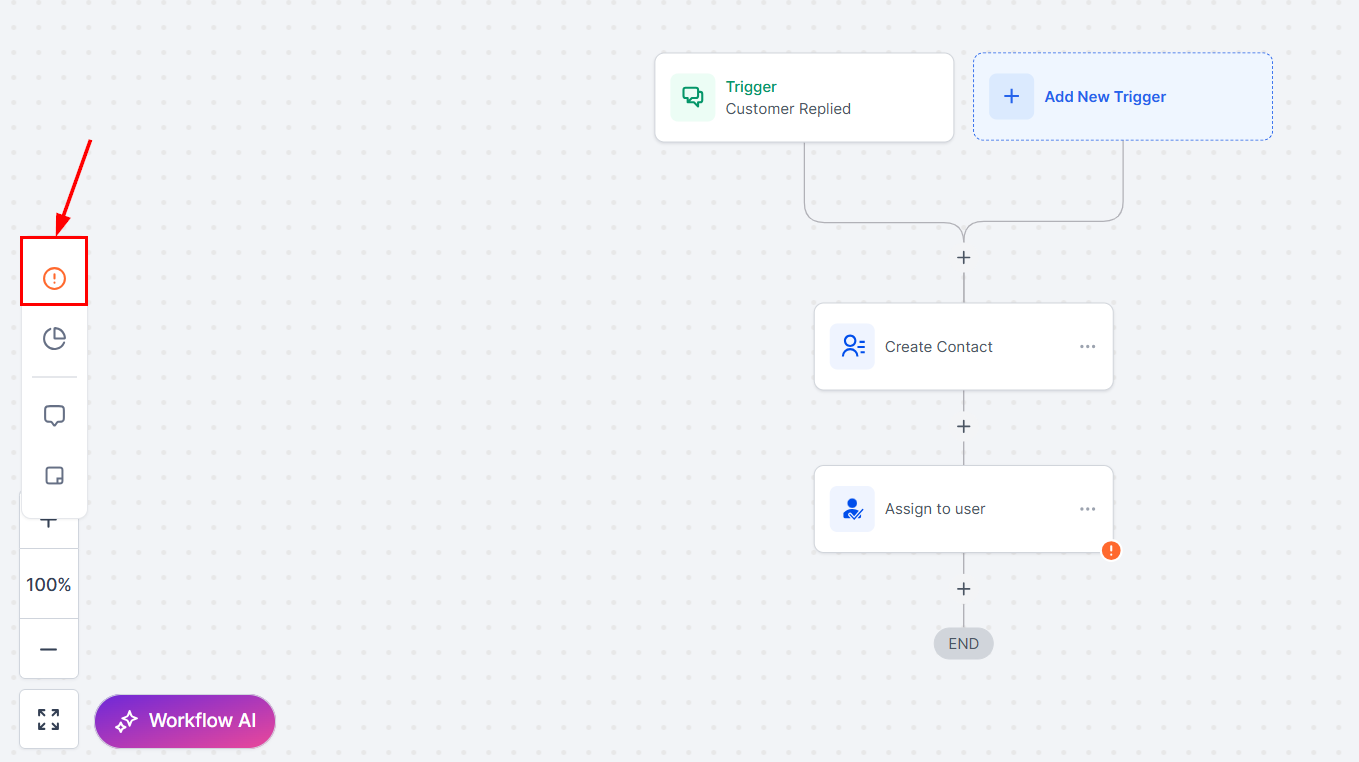
Errors are categorized into:
- Integration Issues: Errors related to integrations.
- Missing Mandatory Fields: Errors caused by missing essential data in any action or trigger.
Using the AI Assistant to Resolve Errors
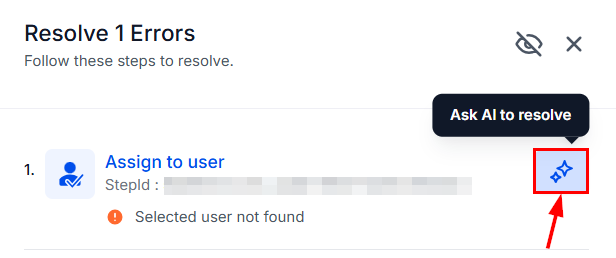
Click the error icon to open the resolution window, then click the “Ask AI to resolve” button next to the relevant error.
The AI Assistant will open in the left panel, providing an error explanation outlining the cause of the issue, along with suggested fixes that offer actionable steps to resolve it.
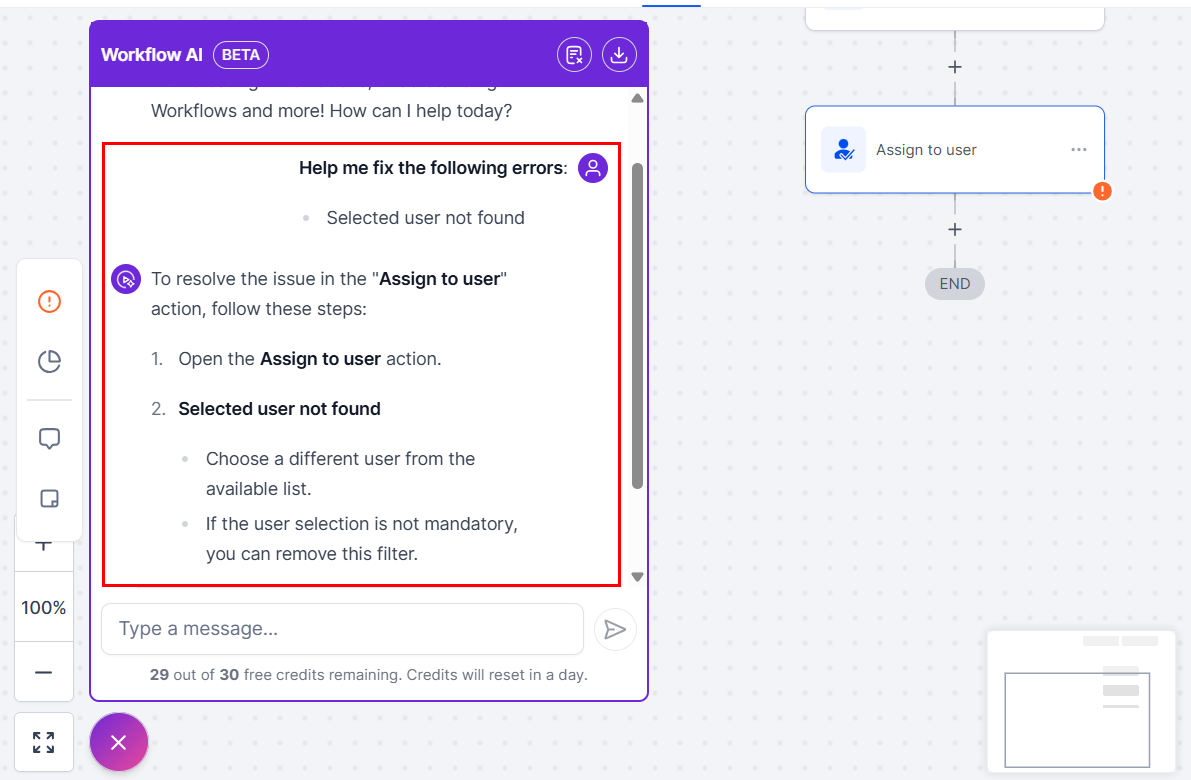
Applying Fixes
Apply the suggested fixes directly within the action/trigger sidebar. If the fix involves external integrations, the AI will guide you to the appropriate configuration settings.
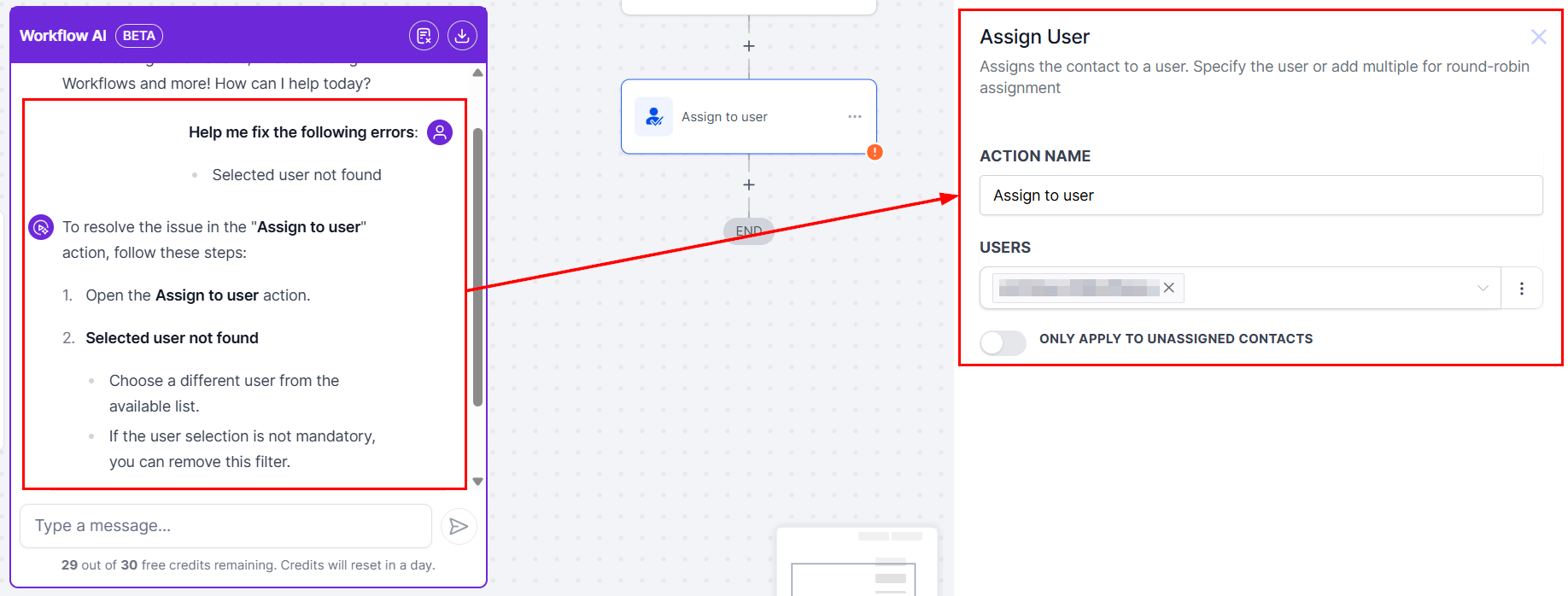
Upon resolution of the error, the Error Icon will disappear, indicating that the issue has been successfully addressed. Additionally, errors will be automatically removed from the side panel list once resolved.
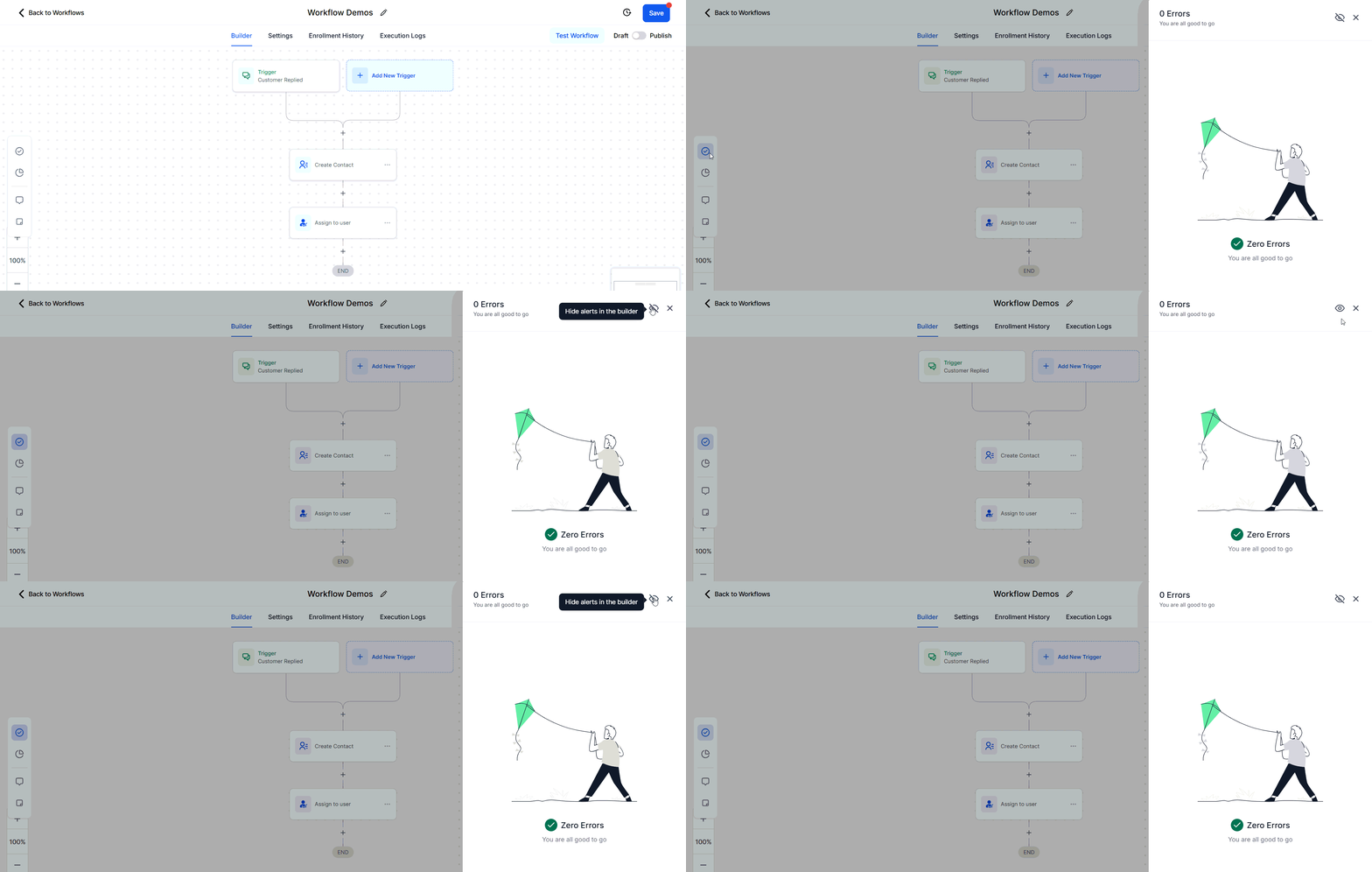
Adjusting Error Tab Visibility
Disable or re-enable the error tab based on your preferences by clicking the eye button in the error panel settings. By doing so, you can remove clutter and utilize your workflow customization options.
The Error Highlight and Error Resolution using AI feature significantly enhances the ease and efficiency of managing workflows. Quickly identifying issues and providing clear solutions reduces the time and effort spent on troubleshooting, allowing you to confidently manage and resolve errors. Whether you're dealing with integration issues or missing data, this feature ensures smooth, reliable workflows every time.
Error Resolution Types
Integration Issues
- Error: Integration with Facebook failed due to incorrect authentication.
- Resolution: The AI Assistant prompts you to reconnect or re-authenticate the integration.
Missing Mandatory Fields
- Error: An action is missing required fields (e.g., Appointment Date, Custom Fields, etc.).
- Resolution: The AI Assistant lists the missing fields and offers options to map them.
Frequently Asked Questions
Q. Can I hide the Error Icons permanently?
- Yes, you can toggle them off from the side panel settings.
Q. Will my published workflow move to the Draft stage if an error is found?
- No, the workflow will not move to the Draft stage if an error is found.
Was this article helpful?
That’s Great!
Thank you for your feedback
Sorry! We couldn't be helpful
Thank you for your feedback
Feedback sent
We appreciate your effort and will try to fix the article