Spam messages can clutter your inbox and distract you from genuine customer inquiries. By setting up an automatic filter within your CRM, you can ensure that your inbox remains clean and focused on relevant communications. This process involves identifying common spam keywords, creating a workflow within your CRM, and specifying actions for detected spam messages.
Setting Up Your Facebook Page
Navigate to your Facebook page dashboard. Go to Settings.
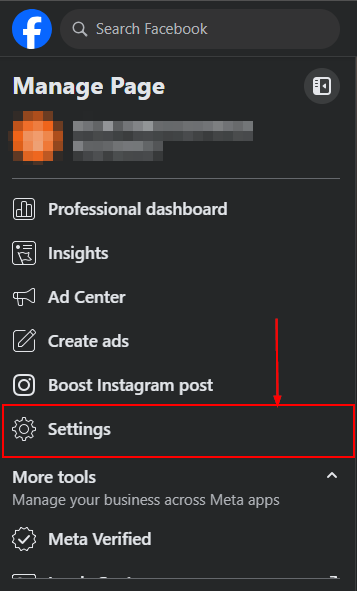
Search and select Messaging and disable Guest Mode to require users to log in before messaging or commenting. Consider enabling additional login requirements for added security.
Creating a Spam Filter Workflow in Your CRM
The core of spam filtering lies in setting up a workflow within your CRM that automatically identifies and takes action on spam messages based on specific keywords.
Access the Workflow Section
Navigate to Automation > Workflows > + Create Workflow. Choose to start from scratch to create a new workflow.
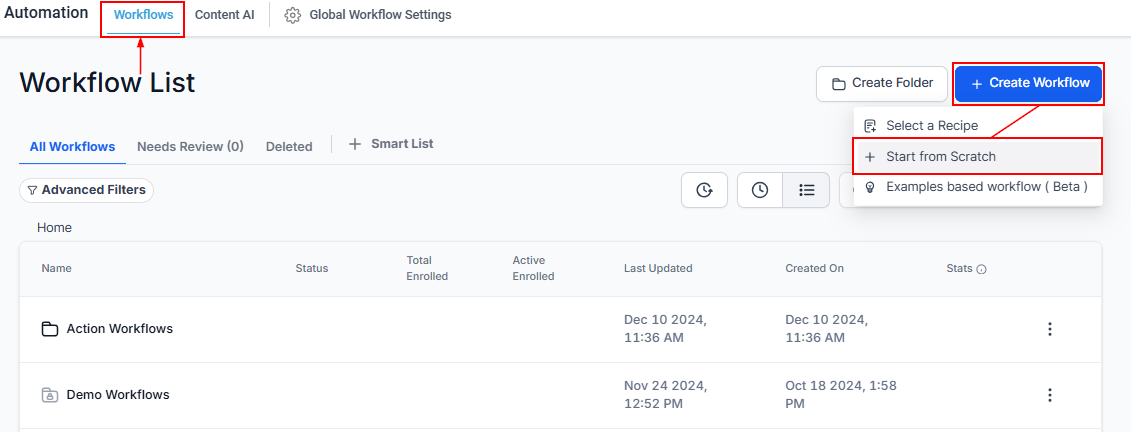
Set Up a New Workflow
Search and add a "Customer Replied" trigger to initiate the workflow whenever a message is received.
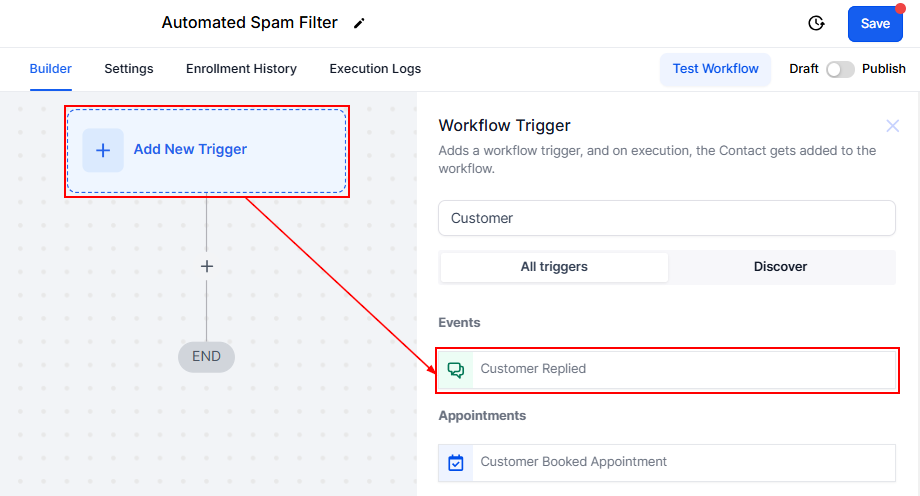
Configure the Trigger
Specify that the trigger should apply to Facebook Messenger messages. Save the trigger to proceed to the next step.
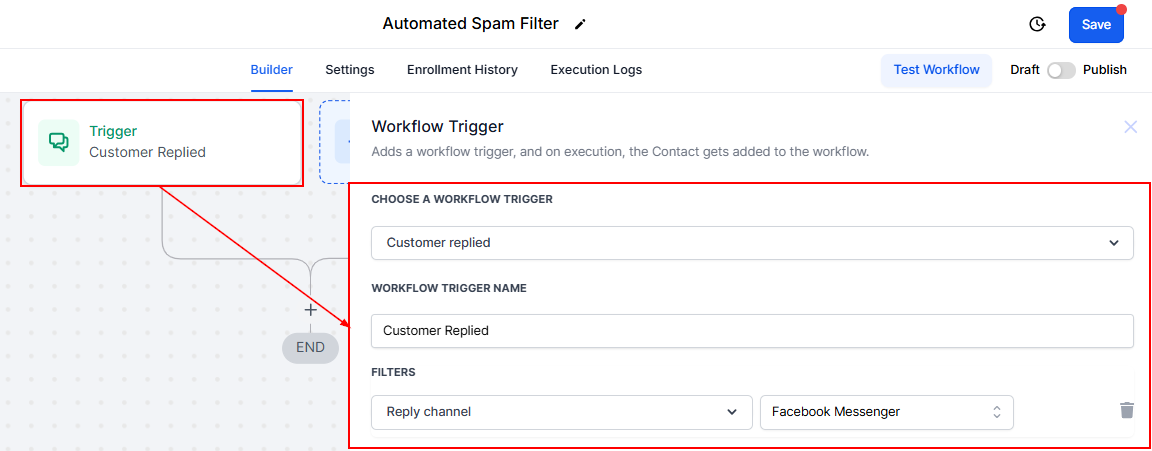
Implement Spam Detection
Add an "If/Else" condition. Configure the condition to check if the received message contains certain spam keywords (e.g., "business opportunity," "meta support," "join now", “make money fast” ). Input your chosen spam keywords.
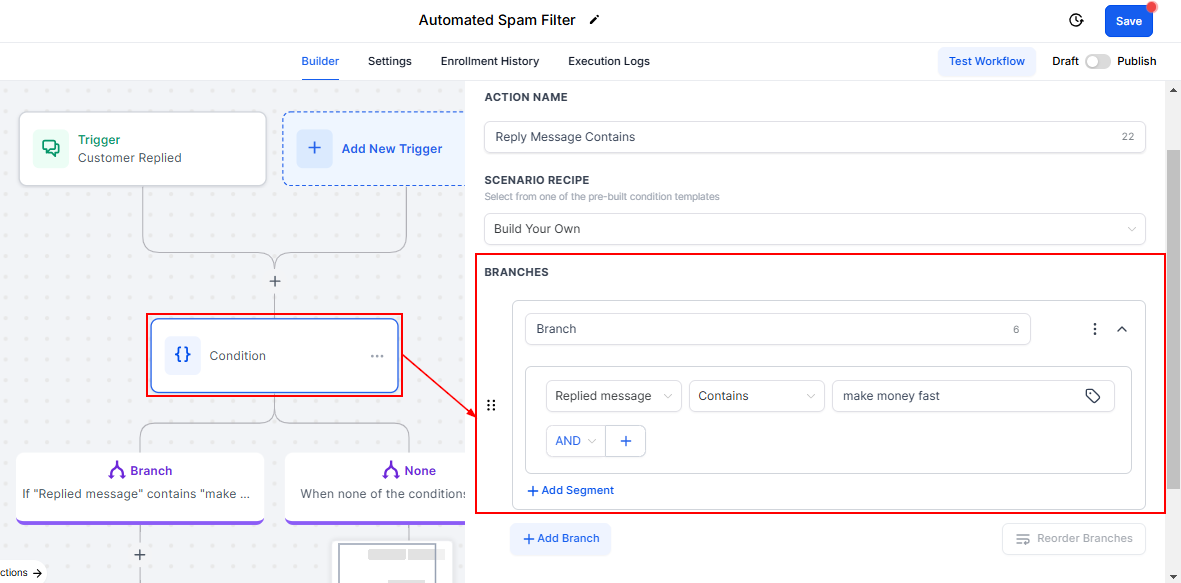
Define the Action for Detected Spam
For messages identified as spam, set an action to delete the contact, block the sender, or enable DND. This ensures that spam messages are automatically removed from your inbox.
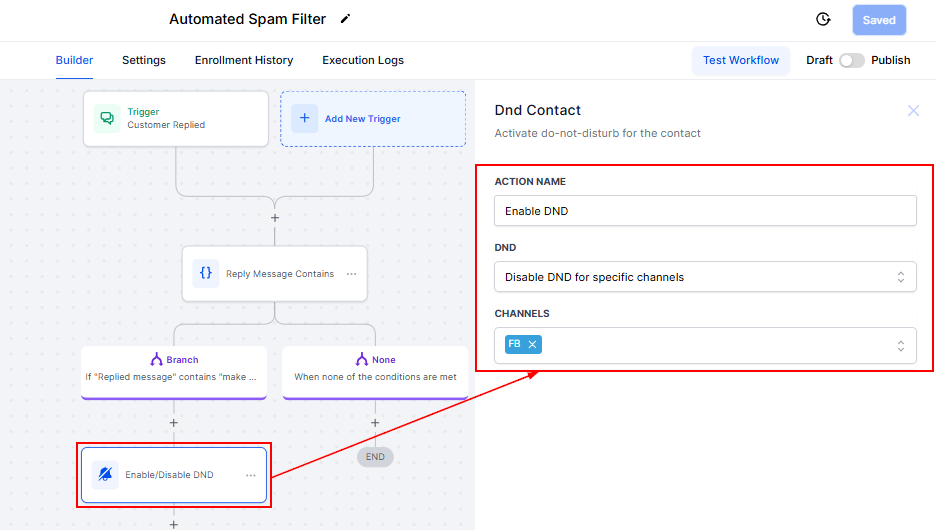
Automating spam filtering with your CRM simplifies inbox management and improves the quality of your interactions. By tailoring workflows to detect and act on spam messages, you can focus on meaningful conversations, enhance customer engagement, and maintain a professional online presence.
Troubleshooting and FAQs
Q: What if legitimate messages are marked as spam?
- Regularly review the keywords list and adjust it to minimize false positives.
Q: Can I apply this filter to other messaging platforms?
- Yes, the workflow can be adapted for email, chat widgets, calls, and Instagram DMs by adjusting the trigger settings.
Was this article helpful?
That’s Great!
Thank you for your feedback
Sorry! We couldn't be helpful
Thank you for your feedback
Feedback sent
We appreciate your effort and will try to fix the article